Xterm is good
13 Aug 2025
Much like John Major, I'm going *Back to Basics*. I use top instead of htop or whatever, I've returned to vim from neovim, I even tried going back to bash instead of zshell but that was a foolish mistake - all of youse bash users should really give zshell a go, it's just better.
Anyway, prompted by your friend and mine, Chris Were, I've been giving xterm a go. And it's good! I'm sticking with it!
There's a simple pleasure in returning to the old standards that've been around since humankind first emerged from their caves and needed to emulate terminals. It's like unearthing your grandmother's old recipe book and finding that she really knew her shit, but there's also recipes like Ham and Bananas Hollandaise so you just ignore those and blame the vallium addiction.
For me, the sticking point with xterm before was the lack of emojis. Not that that is an *essential thing* in a terminal emulator, but I use mutt for email and when my sisters send me emojis it's nice to see them.
But it does emojis now! And even sixel (kinda)!
Sixel (kinda)!
One shocking realisation when using the terminal emulator xterm is that it emulates terminals. As in it emulates actual specific physical terminals that actually existed.
The default terminal it emulates is the VT420, which did not have sixel support. To get that, you need to drop down to an older terminal - the VT340 - which *did* have sixel support. You do this by launching xterm with `xterm -ti 340` or setting `XTerm*decTerminalID: 340` in `~/.Xresources`.

A quick overview of xterm's pros and cons:
- *Pros:**
- It starts with 'X', the coolest letter
- It's from 1984, the year we solved hunger
- It's not GPU accelerated
- It doesn't support Wayland
- It starts really fast - perceptually as fast as st, to me
- It's the de facto standard terminal emulator. It works with everything. And you'll never have to fuck around with terminfo files ever again
- It has a cool logo

- *Cons:**
- It also has an uncool logo

Shut your fat fucking mouth and tell me how to configure it all nice like
Okayyy, fine. Gee willikers.
Xterm, like many old X things (and some newer ones), is configured through X Resources. You edit `~/.Xresources`, then run `xrdb -merge ~/.Xresources` and the settings will take effect next time you pop an xterm open.
First let's define our colours, that happens like this:
! special
*.foreground: #f0ebe3
*.background: #040404
*.cursorColor: #f0ebe3

! black
*.color0: #080809
*.color8: #535353
! red
*.color1: #ff0064
*.color9: #ff0064
(etc.)
Obviously you do all the other colours too, I'm just saving space.
I could be more specific and set `XTerm*colour1: ...` but then it would only be picked up by xterm. The way I've done it, it'll be read by any terminal emulator which uses X Resources.
Then the font face and size
! xterm
XTerm*fastScroll: true
XTerm*faceName: IBM Plex Mono
XTerm*faceSize: 11
That's self explanatory. The `fastScroll` setting sacrifices a bit of accuracy for throughput - a compromise most modern terminal emulators make - I recommend setting it.
Rather than allowing the free resizing of fonts, xterm has some predefined font sizes which you can choose between. You can set those like this:
! VT Font Menu: Unreadable
XTerm*faceSize1: 8
! VT font menu: Tiny
XTerm*faceSize2: 10
! VT font menu: Medium
XTerm*faceSize3: 14
! VT font menu: Large
XTerm*faceSize4: 16
! VT font menu: Huge
XTerm*faceSize5: 22
Now let's turn off the blinking cursor (adjust to taste of course) and a coupla other convenience oozits.
XTerm*utf8: true
XTerm*cursorBlink: false
XTerm*scrollKey:true
XTerm*saveLines: 9000
I'm not entirely convinced `utf8` does anything on my system but I leave it there for good luck. `scrollKey: true` makes the terminal scroll return to the bottom when you're scrolled up and you hit a key. `saveLines:` is how many lines of history you can scroll back through.
XTerm*backarrowKey: false
XTerm*ttyModes: erase ^?
The above fixes the backspace key in certain programs. If you find your backspace key misbehaving, stick that in.
XTerm*scrollTtyOutput: false
That prevents the terminal from scrolling back down when you're scrolled up and there's new output.
XTerm*borderWidth: 0
XTerm*internalBorder: 33
`borderWidth` is an *exterior* border on the xterm window (and the menu windows - more on that later). `internalBorder` is ... an internal border, between the window edge and the contents.
XTerm*termName: xterm-256color
Set that so that programs know which terminal they're dealing with.
XTerm*selectToClipboard: false
XTerm*alternateScroll: true
`selectToClipboard: false` tells xterm to use the clipboard rather than the primary selection and `alternateScroll` allows mouse-scrolling in alternate windows (such as less).
And here's how to do a few key bindings:
XTerm*vt100.translations: #override \
    Shift Ctrl  C: copy-selection(CLIPBOARD) \n\
    Shift Ctrl  V: insert-selection(CLIPBOARD) \n\
    Shift Ctrl  R: set-reverse-video(toggle) \n\
    Ctrl  plus:larger-vt-font() \n\
    Ctrl  minus:smaller-vt-font() \n\
    Ctrl  0:set-vt-font(d)
With those applied, ctrl-shift-c and v will copy and paste text. ctrl-shift-r will toggle the foreground and background colours (fun!).
ctrl and +/- will increment/decrement through the font sizes and ctrl-0 will reset the font size to default.
But what about that menu thing you said something about or whatever
If you press ctrl and one of the three main mouse buttons, you'll notice that xterm has weird menus! Where you can do insane stuff like save what you see in your terminal as HTML or SVG. Mental.
But those menus probably look like arse. That's because they're drawn with something called Athena, which does things in the old fashioned X way that they used in the Edwardian times: [XFLD](https://wiki.archlinux.org/title/X_Logical_Font_Description).
On a modern system (at least on mine) this stuff isn't really used any more. There's one built-in, fallback font specified in that way just so that such things can work at all. But it's not ideal. If that's the case for you, too, you'll need to generate some definitions.
You'll need `mkfontscale`, `mkfontdir` and `xfontsel`. On Arch that means installing `xorg-mkfontscale` (which includes both `mkfontscale` and `mkfontdir`) and `xorg-xfontsel`.
Locate the directory that contains the font you want to use. Or do as I did and just do it for all system installed fonts.
If you're doing it in one directory, just go to the directory containing the fonts and run:
mkfontscale
mkfontdir
xset fp rehash
If, like me, you're doing it in a directory with subdirectories which contain the actual fonts, in my case `/usr/share/fonts/`, then cd to that directory, then (probably as root depending on location), run:
for dir in * ; do if [ -d "$dir" ]; then cd "$dir";xset +fp "$PWD" ;mkfontscale; mkfontdir;cd .. ;fi; done && xset fp rehash
Either way you do it, that will generate the necessary descriptions.
Now you can run `xfontsel` to choose the font.
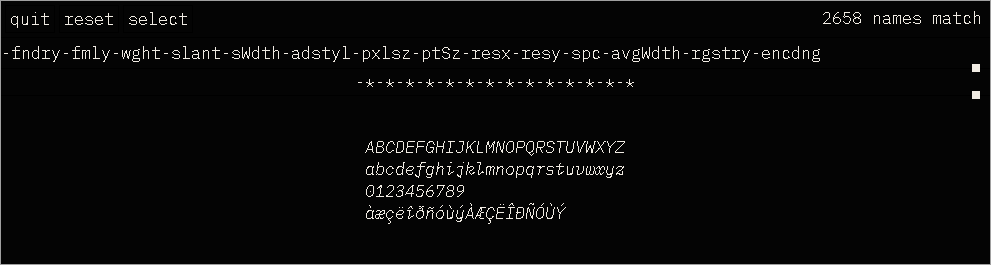
Click on `-fndry` and `-fmly` to narrow it down to the typeface you want, then choose the variant with `-wght` and `slant`. Then choose a `-pxlsz` if you're using a bitmap font or a `-ptSz` if you're using a vector font (TTF or OTF).
You can then click on the `select` button, which will put the font definition string on your primary selection. You can middle click to paste it somewhere.
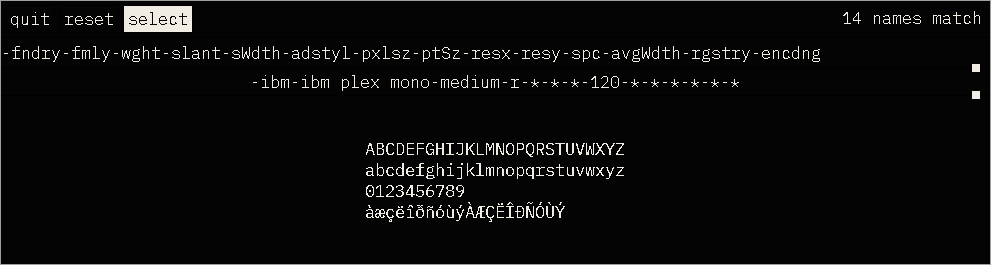
You can then add these lines to `~/.Xresources` to configure the menus:
XTerm*SimpleMenu*font: -*-ibm plex mono-medium-r-normal-*-*-100-*-*-*-*-*-*
XTerm*SimpleMenu*background: #333333
Lastly, set the emulation to VT340 if you want sixel support. If you notice any jank, just delete this and go back to the defaul.
XTerm*decTerminalID: 340
(I changed the font size from 120 to 100).
And that's it. Here's everything together (excluding colours):
! xterm
XTerm*decTerminalID: 340
XTerm*fastScroll: true
XTerm*faceName: IBM Plex Mono
XTerm*faceSize: 11
XTerm*SimpleMenu*font: -*-ibm plex mono-medium-r-normal-*-*-100-*-*-*-*-*-*
XTerm*SimpleMenu*background: #333333
! VT Font Menu: Unreadable
XTerm*faceSize1: 8
! VT font menu: Tiny
XTerm*faceSize2: 10
! VT font menu: Medium
XTerm*faceSize3: 14
! VT font menu: Large
XTerm*faceSize4: 16
! VT font menu: Huge
XTerm*faceSize5: 22
XTerm*utf8: true
XTerm*cursorBlink: false
XTerm*scrollKey:true
XTerm*saveLines: 9000
XTerm*backarrowKey: false
XTerm*ttyModes: erase ^?
XTerm*scrollTtyOutput: false
XTerm*borderWidth: 0
XTerm*internalBorder: 33
XTerm*termName: xterm-256color
XTerm*selectToClipboard: false
XTerm*alternateScroll: true
XTerm*vt100.translations: #override \
    Shift Ctrl  C: copy-selection(CLIPBOARD) \n\
    Shift Ctrl  V: insert-selection(CLIPBOARD) \n\
    Shift Ctrl  R: set-reverse-video(toggle) \n\
    Ctrl  plus:larger-vt-font() \n\
    Ctrl  minus:smaller-vt-font() \n\
    Ctrl  0:set-vt-font(d)
And you can find my full `~/.Xresources` file here if you're a dirty snoop: